Welcome — you run the till 🎉
歡迎!這本指南教你如何用 Mr.DoNothing POS 收銀。照著做就不會出錯。This guide shows you exactly how to sell, refund, and close the day on the Mr.DoNothing POS. Follow it step by step — the screen you see matches the labels in this guide.
Every sale goes on the POS first. Payment is taken on the Oasis terminal.
每一筆銷售都要先在 POS 登記,收款一律用 Oasis 刷卡機。The Mr.DoNothing POS records the sale and reduces stock. All payments — card, Octopus, e-payment — are taken on the Oasis card terminal. We do not accept cash. Do both for every customer: ring it up on the POS and take payment on the terminal.
Mr.DoNothing POS 負責記錄銷售與扣庫存;所有付款(刷卡、八達通、電子支付)一律用 Oasis 刷卡機收款。不收現金。每位客人兩件事都要做:POS 登記 + 刷卡機收款。1️⃣ Ring it upon Mr.DoNothing POS在 POS 登記
→
2️⃣ Take paymenton the Oasis terminal用 Oasis 刷卡機收款
→
3️⃣ Hand overbag the item交付商品 + 裝袋
👉 We accept card / e-payment only. On the POS, always press 💳 Card (incl. other). Every payment settles through Oasis, so it always counts as Card.
👉 只收刷卡/電子支付。在 POS 上一律按「刷卡 (含其他)」。所有付款都經 Oasis 結算,因此一律算「刷卡」。
🚫 No cash. We do not accept cash. If a customer only has cash, politely explain that we take card, Octopus, or e-payment only. Never press the 💵 Cash button.
🚫 不收現金。若客人只有現金,請禮貌說明我們只收刷卡、八達通或電子支付。請勿按「現金」鈕。
Payment mapping — which POS button to press 付款對應 — 該按哪個 POS 按鈕
| Customer pays with 客人付款方式 |
Where to take the money 實際收款方式 |
On POS, choose POS 上選擇 |
|---|---|---|
| Credit / debit card信用卡 / 金融卡 | Oasis card terminalOasis 刷卡機 | 💳 Card (incl. other)刷卡 (含其他) |
| Octopus / e-wallet八達通 / 電子錢包 | Oasis terminalOasis 刷卡機 | 💳 Card (incl. other)刷卡 (含其他) |
| Cash現金 | ❌ Not accepted❌ 不收 | — (explain card / e-payment only)—(說明只收刷卡/電子支付) |
Why it matters: at closing, the POS "Sales by payment" total must match the Oasis terminal card report. If you press the wrong button, the numbers won't reconcile.
為什麼重要:結算時,POS 的「付款方式別銷售」要對得上 Oasis 刷卡機的刷卡報表。按錯按鈕,帳就對不起來。
1
Log in to the pop-up 登入快閃店
- Open
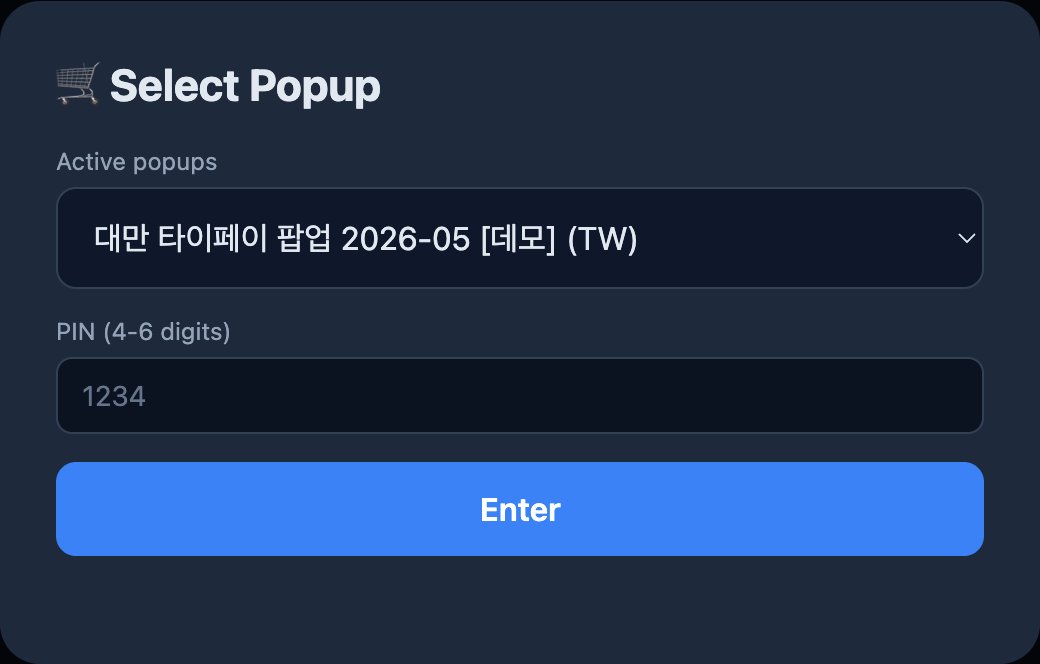
pos.jeisha.kr/poson the tablet. 在平板打開pos.jeisha.kr/pos。 - Under 🛒 Select Popup / 選擇快閃店, choose the Hong Kong PopCorn popup — 홍콩 PopCorn Summer 2026. 在「選擇快閃店」選擇香港 PopCorn 快閃店 — 홍콩 PopCorn Summer 2026。
- Enter the PIN (4–6 digits) — shared in the team LINE group. 輸入 PIN(4–6 位數) — 於團隊 LINE 群組分享。
- Tap Enter / 進入. 按「進入」。
📖 You can open this guide anytime from the POS — tap 📖 Guide on the login screen, or the ❓ button in the toolbar after you log in.
📖 你隨時可以從 POS 打開本指南 — 在登入畫面按「📖 Guide」,或登入後按工具列的「❓」。
🌐 The login screen may first appear in another language. As soon as you enter the PIN, it switches to Chinese (繁中) for this store automatically. You can change the language from the selector in the top toolbar once you reach the sales screen (Step 3).
登入畫面可能先顯示其他語言。輸入 PIN 後會自動切換成本店的繁體中文。進入銷售畫面後(步驟 3),可用上方工具列的語言選單更換。
2
Check in — start your shift 上班簽到 — 開始你的班次
On the 👤 Who is selling? screen: 在「誰來銷售?」畫面:
- Find your name and tap Check in / 上班. If you're already on duty, tap Enter → / 進入 instead. 找到你的名字,按「上班」。若你已在上班中,改按「進入 →」。
- Not on the list? Tap + Register new staff / 新增員工, enter your Name (Phone / Wage optional), then Save & Check-in / 儲存並簽到. 名字不在清單?按「+ 新增員工」,輸入姓名(電話/時薪可留空),再按「儲存並簽到」。
- That's it — you go straight to the sales screen. 完成 — 直接進入銷售畫面。
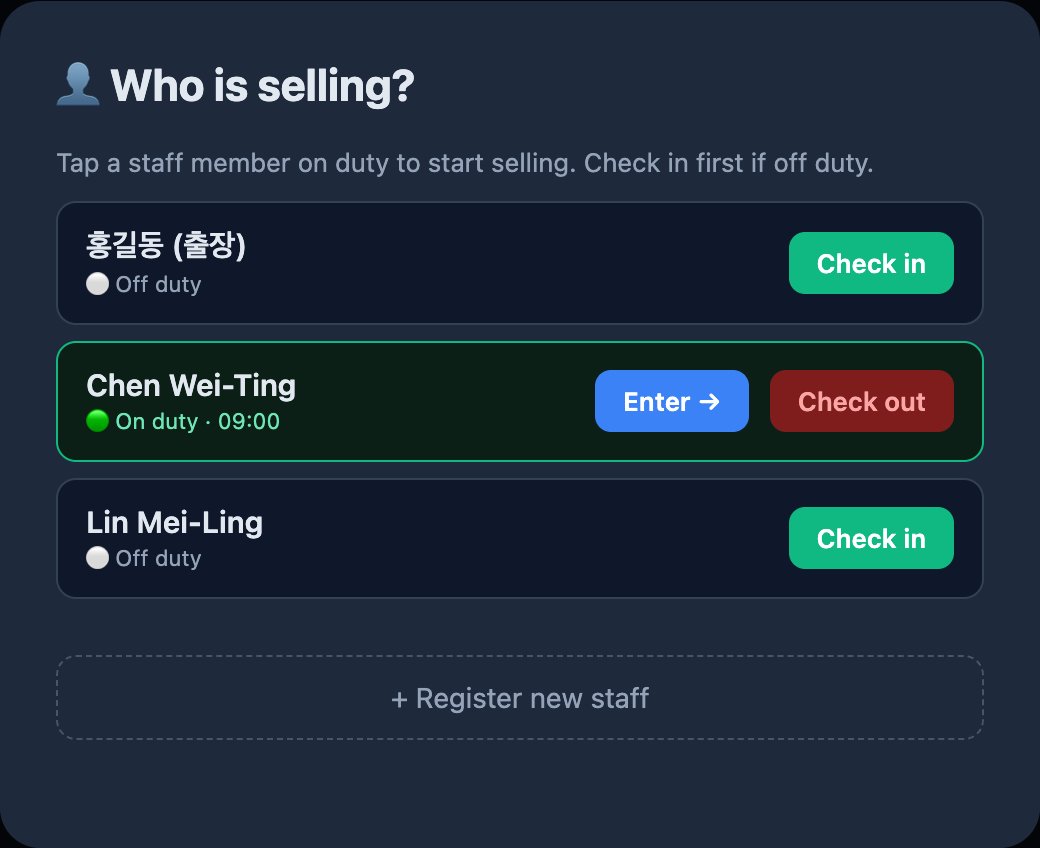
💡 The seller shown at the top-left is you. Everything you sell is recorded under your name for the shift.
左上角顯示的銷售員就是你。這個班次賣出的都會記在你名下。
3
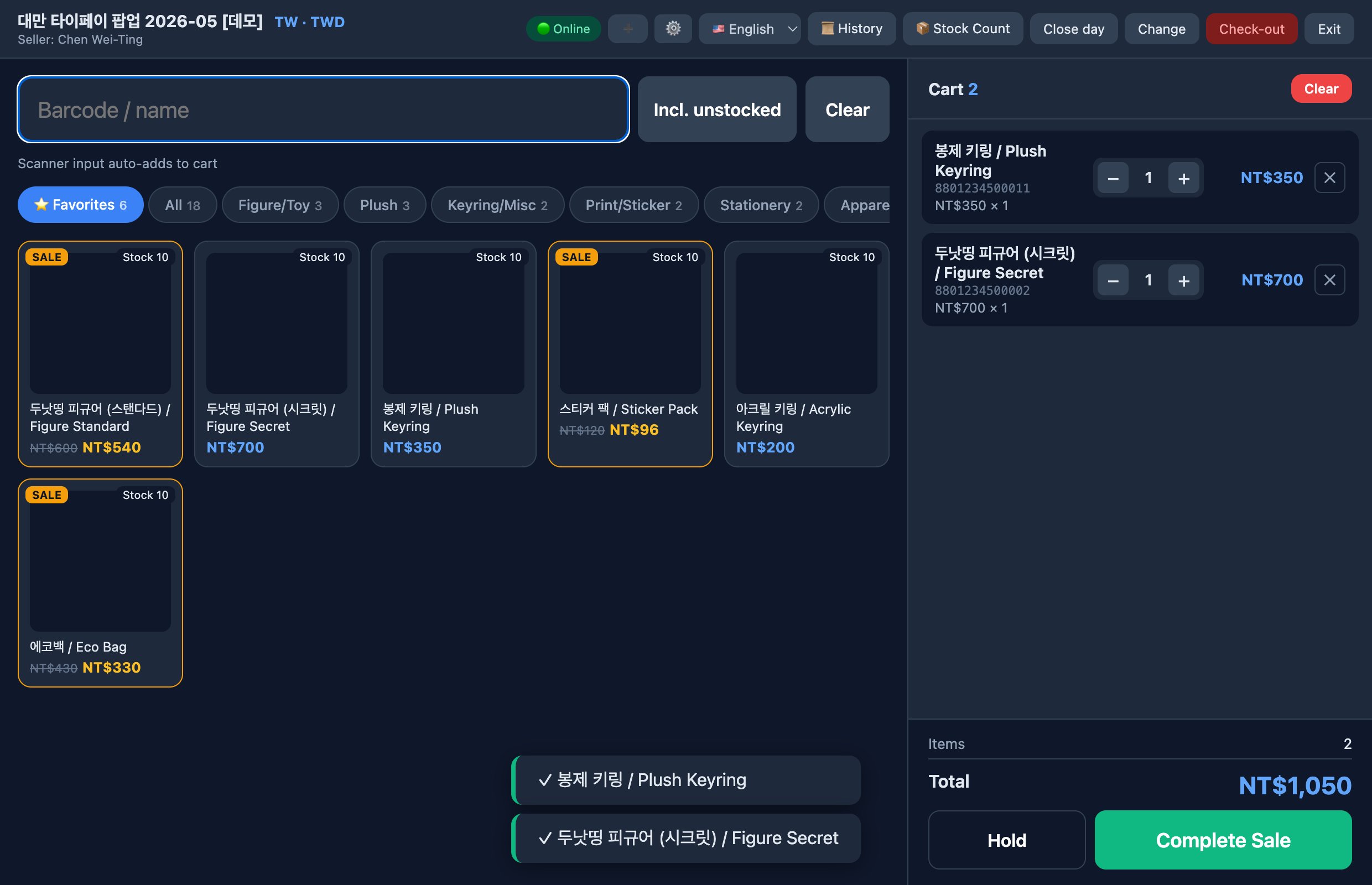
Know the screen 認識畫面
| Area / 區域 | What it does / 功能 |
|---|---|
| Scan bar (top)掃描列(上方) | Scan a barcode or type a product name. Scanner input auto-adds to the cart.掃描條碼或輸入商品名;掃描會自動加入購物車。 |
| Category tabs分類頁籤 | All / 全部 · ⭐ Favorites / 最愛 · Figure/Toy 公仔玩具 · Plush 玩偶 · Keyring 鑰匙圈 · Apparel 服飾 … Tap to filter the product grid.點擊可篩選商品。 |
| Product grid商品格 | Tap a card to add it to the cart (an alternative to scanning).點商品卡即可加入購物車(掃描以外的方式)。 |
| Cart (right)購物車(右側) | Shows Items 商品數 · Subtotal 小計 · Discount 折扣 · Total 總計, with Hold / 保留 and Complete Sale / 完成銷售.顯示商品數・小計・折扣・總計,含「保留」與「完成銷售」。 |
| Top toolbar上方工具列 | Language selector (🇹🇼 繁中 / 🇬🇧 EN) · ❓ Help / 說明 (this guide) · 📜 History / 交易記錄 · 📦 Stock Count / 庫存盤點 (manager) · 📅 Close day / 日結算 · Change / 變更 (seller) · Check-out / 下班 · Exit / 退出.語言選單 · 說明(本指南)· 交易記錄 · 庫存盤點(負責人用)· 日結算 · 變更 · 下班 · 退出。 |
4
Make a sale 完成一筆銷售
- Add products: scan the barcode, or type the name / tap the product card. Each add increases the quantity. 加入商品:掃條碼,或輸入商品名/點商品卡。每次加入數量 +1。
- Check the cart on the right — items and Total / 總計. 確認右側購物車 — 商品與「總計」。
- Tap Complete Sale / 完成銷售. 按「完成銷售」。
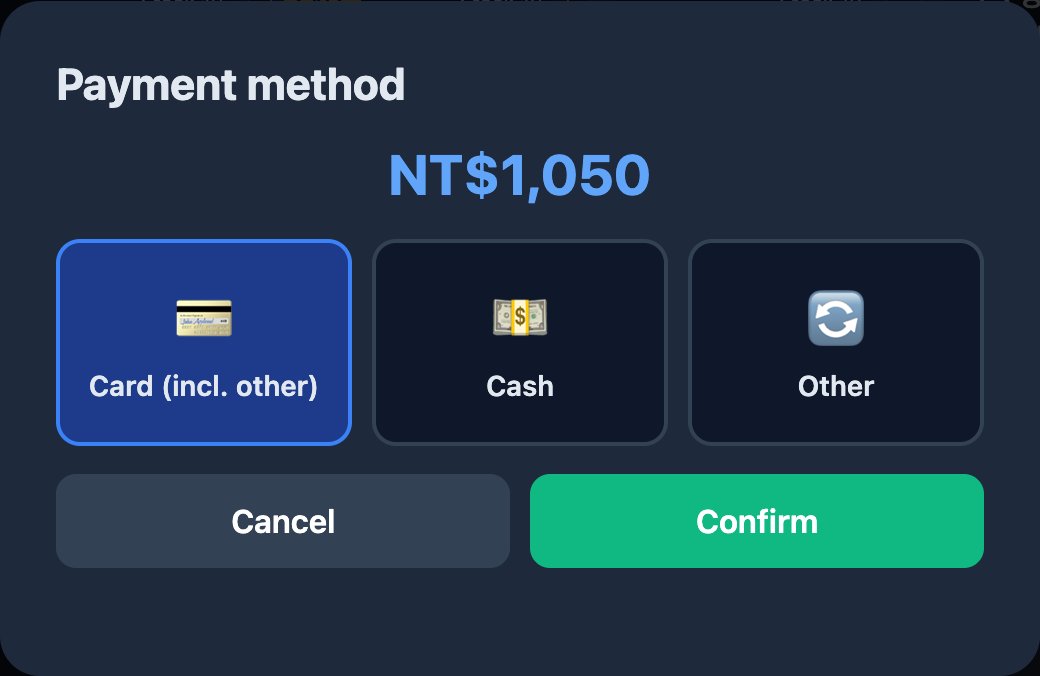
- The Payment method / 付款方式 popup opens. Always tap 💳 Card (incl. other) / 刷卡(含其他) — this covers card, Octopus and e-payment (all taken on the Oasis terminal). Do not use Cash. 「付款方式」視窗會出現。一律按「刷卡 (含其他)」—涵蓋刷卡、八達通、電子支付(都用 Oasis 刷卡機收款)。不要用「現金」。
- Tap Confirm / 確認. You'll see ✓ Sale complete with a receipt number. 按「確認」。會顯示「✓ 銷售完成」與收據號碼。
- Collect the money on the Oasis terminal (card) — then hand over the item and bag it. 用 Oasis 刷卡機收款(刷卡)— 再把商品交給客人並裝袋。
⛔ Never skip the POS, even when busy. If you only take money on the Oasis terminal without ringing it on the POS, the stock and sales records will be wrong.
⛔ 再忙也不能跳過 POS。只用 Oasis 刷卡機收款卻沒在 POS 登記,庫存與銷售紀錄就會出錯。
💡 The order of buttons on the POS is just recording. Whether you tap the Oasis terminal before or after pressing Complete Sale is fine — but both must happen for each customer.
💡 POS 只是記錄。刷卡機在「完成銷售」前後刷都可以,重點是兩件事每位客人都要做。
🧾 Our POS does not print a paper receipt — it keeps a digital record with a receipt number. For card payments, the Oasis terminal prints the card slip.
🧾 我們的 POS 不印紙本收據,只保留含收據號碼的電子紀錄。刷卡時由 Oasis 刷卡機列印簽單。
💵
Cash payment — received & change 現金收款 — 收現與找零
⛔ Only for pop-ups that accept cash. If your pop-up is card-only (e.g. Hong Kong — Oasis terminal), never use Cash.
⛔ 僅限接受現金的快閃店。若你的店只收卡(例如香港用 Oasis 刷卡機),請勿使用「現金」。
- Tap Complete Sale / 完成銷售, then choose 💵 Cash / 現金 — a cash panel appears in the same popup. 按「完成銷售」後選「💵 現金」— 同一視窗會出現現金面板。
- Enter the amount the customer handed you in Cash received / 收到現金 — type it, or tap a bill chip (e.g. +NT$1,000) once per bill as you count. Exact / 剛好 = exact amount, C = clear. 在「收到現金」輸入客人給的金額 — 直接輸入,或邊數鈔邊按面額鍵(如 +NT$1,000,每張按一次)。「剛好」= 剛好收足,「C」= 清除。
- Change / 找零 is calculated instantly and shown big in green — hand back exactly that amount. 「找零」立即計算並以綠色大字顯示 — 照金額找零即可。
- If the cash is not enough, a red "… short / 不足 …" appears and Confirm / 確認 is blocked — ask the customer for the rest first. 若現金不足會出現紅字「不足…」且無法按「確認」— 請先向客人補收。
- Tap Confirm / 確認. The change amount is shown once more in the green ✓ toast after the sale. 按「確認」。銷售完成的綠色 ✓ 提示會再顯示一次找零金額。
💡 Entering the received amount is optional but strongly recommended — it is saved with the sale record. If the cash drawer doesn't match at day close, the office can trace exactly which sale went wrong.
💡 「收到現金」非必填但強烈建議輸入 — 會隨銷售紀錄一起保存。日結算現金對不上時,公司可追查是哪一筆出錯。
5
Quantity, remove, clear, hold 數量、移除、清空、保留
- More of the same item: scan/tap it again, or use +/− in the cart line. 同商品多件:再掃/再點一次,或用購物車列的 +/−。
- Large quantity (recommended): tap the quantity number in the cart line and type it, then press Enter (no need to tap + many times · max 999). While the cursor is in the quantity box, a barcode scan goes into that box — press Enter first, then scan. If you scan by mistake, the quantity is restored and the scanned item is added. 數量較多(建議):點購物車列的數量數字直接用鍵盤輸入,然後按 Enter(不用一直按+・最多 999)。游標在數量欄時,掃到的條碼會打進數量欄 — 先按 Enter 再掃;誤掃時會還原數量並把該商品加入購物車。
- Remove a line: tap the ✕ at the right end of that cart line. 移除一列:按該列右側的「✕」。
- Clear the whole cart: tap Clear / 清空. 清空整車:按「清空」。
- Hold an order (park): tap Hold / 保留 to set the cart aside (e.g. customer went to get more cash). Restore it later from the parked list. 保留訂單:按「保留」暫存購物車(例如客人去領錢),稍後可從保留清單恢復。
6
Refund & cancel 退款與取消
- Tap 📜 History / 交易記錄 in the toolbar. 按工具列的「交易記錄」。
- Find the sale (search by receipt no / item / barcode). Filters: Today 今日 · All 全部 · Refunded 退款. 找到該筆(可用收據號/商品/條碼搜尋)。
- Choose:
- ↩ Partial / 部分退款 — refund some quantity/items.退部分數量。
- 🧾 Cancel all / 全部取消 — cancel the whole sale, restore all stock (asks a confirmation first).整筆取消,庫存全部復原(會先跳出確認)。
- Pick a Refund reason / 退款原因 (required): Buyer remorse 後悔 · Defect 瑕疵 · Size 尺寸 · Exchange 換貨 · Other 其他. 選擇「退款原因」(必填)。
- Tap ↩ Partial / 部分退款 (or 🧾 Cancel all / 全部取消) to finish. No extra PIN is asked — you're already logged in. 按「部分退款」(或「全部取消」)完成。不會再要求輸入 PIN—你已登入。
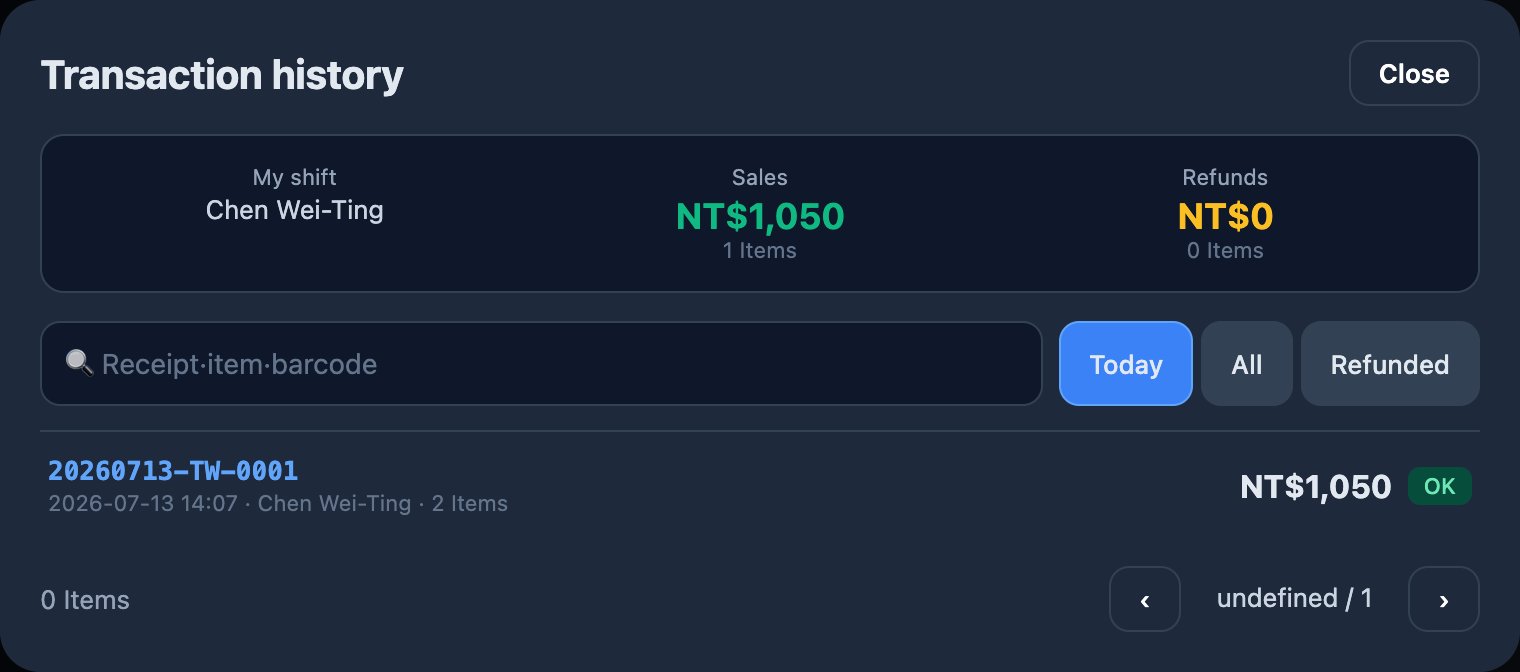 ▲ History / 交易記錄 — find the sale, tap it
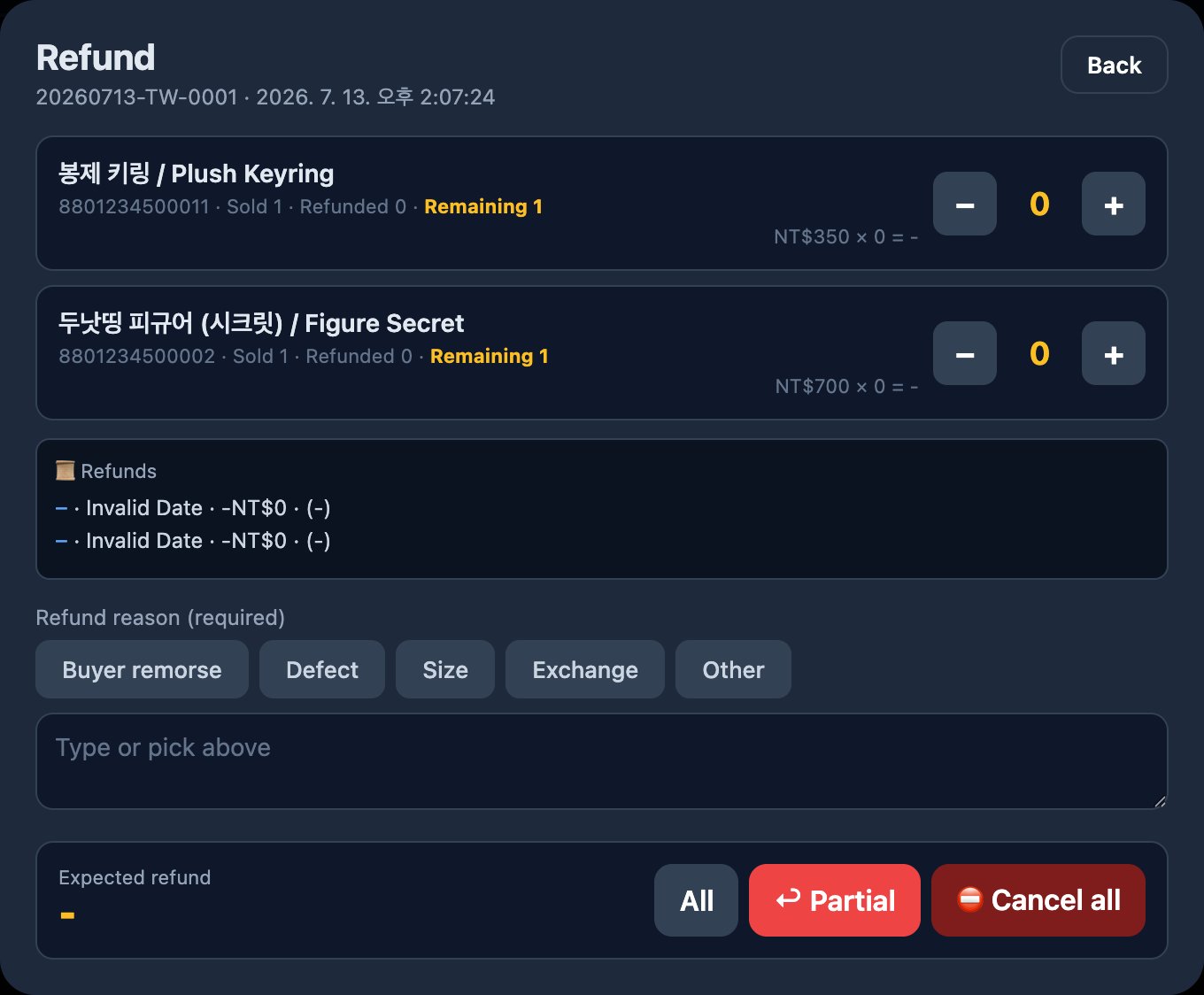 ▲ Refund / 退款 — set qty, pick reason, then Partial / Cancel all
💳 Card refund = also refund on the Oasis terminal. The POS refund only fixes our records & stock. You must return the money to the customer on the Oasis terminal, to the same card they paid with. Card only — we never refund cash.
💳 刷卡退款=也要在 Oasis 刷卡機退。POS 退款只更新我們的紀錄與庫存;實際退錢要用 Oasis 刷卡機退回原本付款的那張卡。只退卡—絕不退現金。
⚠️ Refund policy: there is no manager on site, so you can process the refund yourself — no need to wait for approval. Always pick the correct refund reason (required); that is your record. Every refund is logged under your name with the reason and time, and the team reviews refunds afterwards. For a full cancellation, drop a quick note in the LINE group afterwards. Only if you are genuinely unsure whether to refund, ask in the LINE group first.
⚠️ 退款政策:現場沒有負責人,所以你可以自行處理退款,不必等待核准。務必選擇正確的退款原因(必填),這就是你的紀錄。每筆退款都會記在你名下並附原因與時間,團隊會事後檢視。整筆取消後請在 LINE 群組簡短告知。只有真的不確定是否該退時,才先在 LINE 群組詢問。
📖 Full step-by-step refund procedure: Refund Procedure guide ↩
📖 完整退款處理流程:退款處理流程指南 ↩
7
Sold out · product not found 售完 · 找不到商品
| Situation / 情況 | What to do / 怎麼做 |
|---|---|
| Shows "Sold out / 售完"顯示「售完」 | Stock is 0 on the POS. Check the shelf/storage — if you find stock, tell the manager to add it. Do not sell without ringing it up.POS 庫存為 0。查看貨架/庫存,若有貨請通知負責人補登;沒登記不要賣。 |
| Scan finds nothing掃描找不到 | Try typing the product name. Turn on Incl. unstocked / 含未入庫 to search all products. If still missing, ask in the team LINE group — don't invent a price.改用商品名搜尋;開啟「含未入庫」搜尋全部。仍找不到就在團隊 LINE 群組詢問,別自行定價。 |
| A "Register product" popup appears跳出「新增商品」視窗 | Scanning an unknown barcode pops up a "Register product" form. Do NOT fill it in. Tap Cancel and ask in the team LINE group — a wrong price/barcode breaks the records.掃到未登錄的條碼會跳出「新增商品」表單。請勿填寫,按「取消」並在團隊 LINE 群組詢問;錯誤的價格/條碼會破壞紀錄。 |
| Price shows 0 / "No price"價格為 0 /未設價 | The HKD price isn't set. Call the manager to set it in Admin — do not sell at a guessed price.港幣價格未設定。請負責人在管理端設定,勿以猜測價格販售。 |
💡 There is a ➕ button to register a product on the spot, but only the manager should use it — a wrong barcode or price breaks the records.
💡 有 ➕ 現場新增商品的按鈕,但只由負責人操作;條碼或價格錯誤會破壞紀錄。
8
Close the day 日結算(收店)
At the end of each day, before you leave: 每天收店前:
- Tap 📅 Close day / 日結算. 按「日結算」。
- Review Sales by payment / 付款方式別銷售 — the Card total is the day's sales (Cash / Other should be 0). 檢視「付款方式別銷售」—「刷卡」合計就是當日銷售(現金/其他應為 0)。
- Reconcile the card total with the Oasis terminal's daily card report. They should match. 把刷卡合計與 Oasis 刷卡機的當日刷卡報表核對,應一致。
- Since we take no cash, the POS shows 💵 No cash activity — skip cash check. No cash counting needed. 因為不收現金,POS 會顯示「無現金交易 — 略過現金核對」,不用清點現金。
- Tap ✓ Confirm close / 確認結算. You'll see ✓ Day closed (awaiting admin approval). 按「確認結算」。會顯示「結算完成(待管理員核准)」。
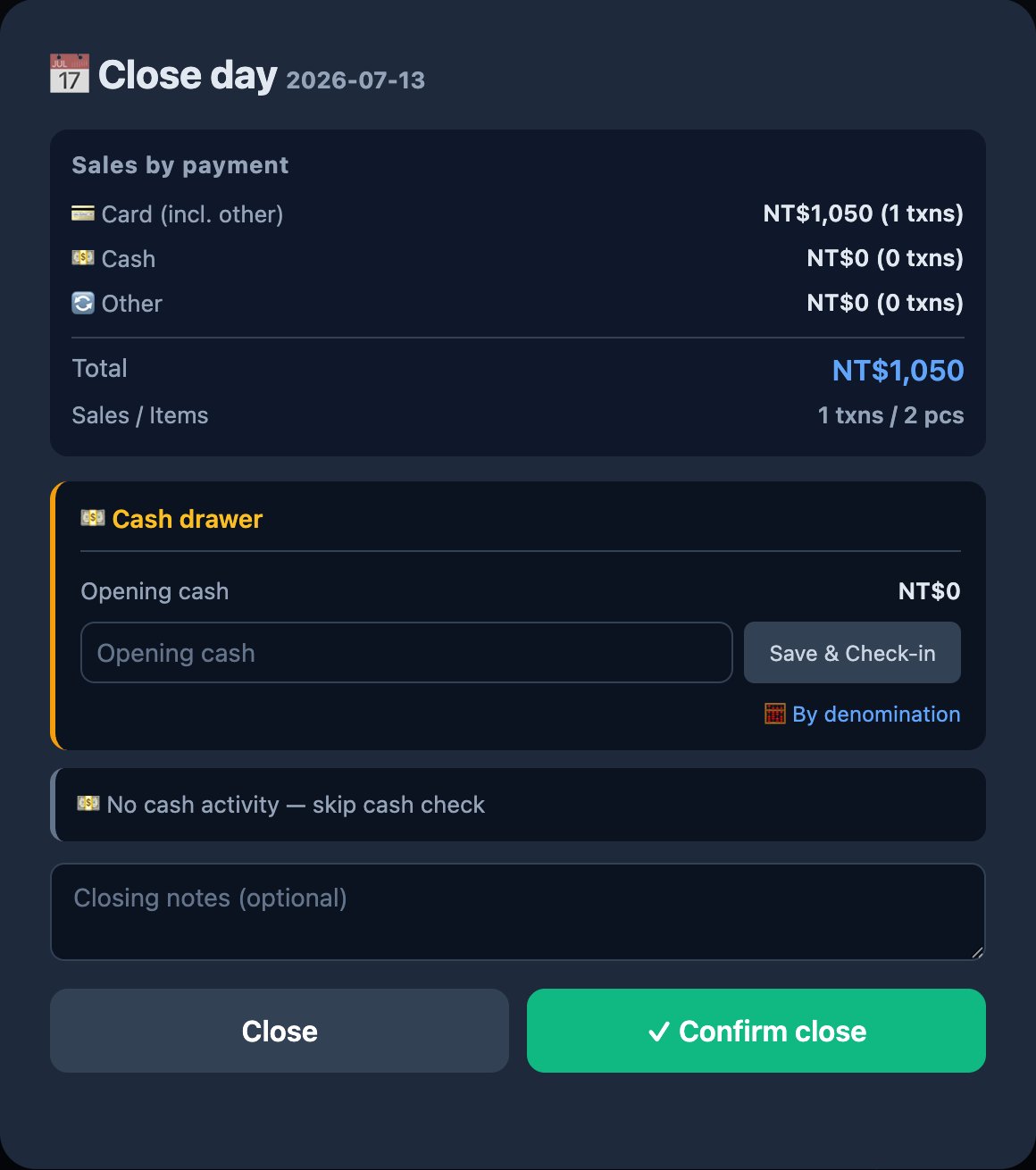
✅ After confirming, the manager approves it in the admin panel. Because we take no cash, there is nothing to count — just check the Card total matches the Oasis terminal.
✅ 確認後由負責人在管理端核准。因為不收現金,無需清點 — 只要確認「刷卡」合計與 Oasis 刷卡機一致即可。
9
Check out 下班簽退
- Tap Check-out / 下班 in the toolbar. 按工具列的「下班」。
- Confirm the cash if prompted, then Confirm check-out / 確認下班. 如有提示先確認現金,再按「確認下班」。
- If someone else takes over the till, they check in under their own name (Change / 變更 seller). 若換人接手,對方用自己的名字簽到(「變更」銷售員)。
✓
Cheat sheet & troubleshooting 快速卡與常見問題
One-line flow / 一句話流程
Scan → Complete Sale → pick Card/Cash → Confirm → take money on Oasis terminal / cash → hand over & bag.
掃描 → 完成銷售 → 選刷卡/現金 → 確認 → 用 Oasis 刷卡機或現金收款 → 交付並裝袋。
Troubleshooting / 疑難排解
| Problem / 問題 | Fix / 解法 |
|---|---|
| "No active popup" on login登入顯示無進行中快閃店 | The popup isn't started yet. Ask the manager to set it active.活動尚未開始,請負責人設為進行中。 |
| Scanner does nothing掃描器沒反應 | Tap the scan bar first so it's focused, then scan. Check the scanner cable/battery.先點掃描列讓游標在上面再掃;檢查掃描槍線/電量。 |
| 🔴 Offline shown顯示離線 | Keep selling — sales are saved and auto-sync when internet returns. Don't re-enter them.照常銷售,資料會離線儲存並在恢復連線後自動上傳,勿重複輸入。 |
| Wrong item / qty in a finished sale已完成的銷售品項/數量錯誤 | Use History → Partial refund / Cancel all, then ring the correct sale.用「交易記錄 → 部分退款/全部取消」,再重新登記正確的銷售。 |
| Cash doesn't match at close結算時現金對不上 | Enter the counted amount and write a Diff reason. Tell the manager.填入實際金額並寫「差額原因」,並告知負責人。 |
📞 When in doubt, ask in the team LINE group. Never guess a price, never skip the POS. For any refund, always record the correct reason.
📞 有疑問就在團隊 LINE 群組詢問。別猜價格、別跳過 POS。任何退款都要記錄正確原因。